


Testing methodology
See how the historical views were produced and which execution costs may be missing.
Read methodology PrimeSync Project
TradingView indicators & strategies
Understand the setup. See what confirmed it and where the risk levels sit.
At bar close, PrimeSync checks price, volume, volatility, VWAP and the 150-period moving average.
Quantitative filters
Market profiles
Monte Carlo review
Historical tests show how the rules behaved. Reshuffling trades helps examine how the order of outcomes affects drawdown.
Trend-direction arrows on TradingView.
Whop account required. No payment required.
Activate your TradingView username inside Whop. Access terms

Explore the original Strategy Tester reports. Select a timeframe to inspect its historical results.

Price, volume and market structure begin to align.
A confirmed Pro or Max setup shows entry, stop-loss and take-profit levels on the chart.
Review the levels, choose your position size and decide whether to take the trade.
See how the historical views were produced and which execution costs may be missing.
Read methodologyRead member reviews on the platform that handles PrimeSync access.
Reviews on WhopCancel anytime. Access continues until the end of the paid billing period.
Subscription termsBring your own strategy idea into ChatGPT or Claude. Define the rules, build TradingView code, and review what the backtest shows.
Explore AI StudioSpecify the market, session and entry conditions.
Turn those conditions into a testable strategy.
Explore drawdown sensitivity with Monte Carlo analysis.
 08 / FAQ
PrimeSync began as a private tool built to solve a problem every trader understands: staying disciplined when the market feels uncertain. What started as one trader's personal system is now growing into something built to learn, improve, and move forward with its members.
PrimeSync Basic provides the base indicator with trend-direction arrows. PrimeSync Pro adds TradingView alerts and mapped trade levels. PrimeSync Max includes the indicator plus the backtestable strategy system and its 12 market profiles.
Yes. You can execute every setup manually or route Max TradingView alerts through a compatible third-party automation service.
Open the TradingView access page inside your PrimeSync Whop membership and enter your TradingView username. Access is determined by your tier. No email request is needed.
Yes. There is no long-term lock-in, and access remains active until the end of your current billing period.
Still have a question? Contact PrimeSync support.
Explore historical setups with their mapped entry, stop-loss and take-profit levels.
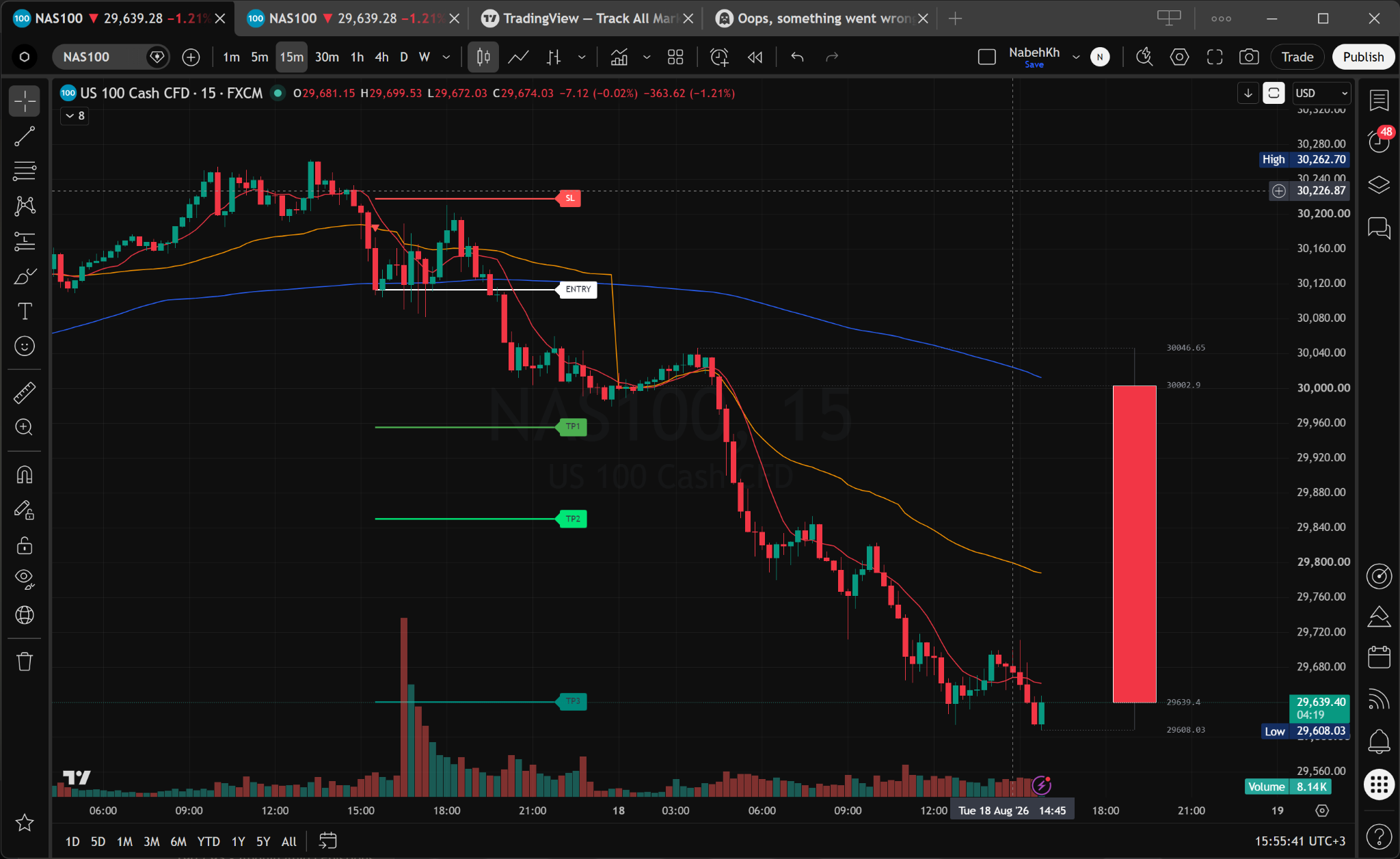
Illustrative historical charts include Bar Replay examples. Trading involves risk. Past performance does not guarantee future results.